
Skip to content
Tigy AI
/
Legal centerDashboard
OverviewDeveloper
Overview

Get started

  • Introduction
  • Overview
  • First agent
  • Tools and data
  • Concepts
    • How it works
    • Calls and runs

Configure

  • Behavior
    • Prompting
    • Conversation flow
  • Voice and models
    • LLM
    • Voice
    • Transcription
    • Fallbacks
    • Audio library
  • Tools
    • Tools
    • HTTP API
    • MCP
    • Credentials
    • Call transfer
    • End call
  • Knowledge base
  • Testing
  • Agent ID

Deploy

  • Publishing
  • Versions
  • Telephony
    • Introduction
    • Connect telephony
    • Inbound calls
    • Twilio
    • Telnyx
    • SIP

Monitor

  • Runs and usage
  • Reports
  • Troubleshooting

Workspace

  • Workspace
  • Members and permissions
  • Billing
  • Security
  • Privacy

Developer

  • Call data
Dashboard
Explore pages
Overview

Get started

  • Introduction
  • Overview
  • First agent
  • Tools and data
  • Concepts
    • How it works
    • Calls and runs

Configure

  • Behavior
    • Prompting
    • Conversation flow
  • Voice and models
    • LLM
    • Voice
    • Transcription
    • Fallbacks
    • Audio library
  • Tools
    • Tools
    • HTTP API
    • MCP
    • Credentials
    • Call transfer
    • End call
  • Knowledge base
  • Testing
  • Agent ID

Deploy

  • Publishing
  • Versions
  • Telephony
    • Introduction
    • Connect telephony
    • Inbound calls
    • Twilio
    • Telnyx
    • SIP

Monitor

  • Runs and usage
  • Reports
  • Troubleshooting

Workspace

  • Workspace
  • Members and permissions
  • Billing
  • Security
  • Privacy

Developer

  • Call data
Dashboard

Documentation / Connect with Telephony

Connect with Telephony

Connect Twilio so Tigy AI can receive real phone calls for your agents.

To receive phone calls, connect a phone number from a supported telephony provider. This page walks through Twilio.

Step 1: Create a Twilio account and buy a number

Sign up at Twilio. You'll land on their dashboard with free trial credits you can use for testing. Go to Phone Numbers and click Buy a number, pick any number you like.

Step 2: Copy your Account SID

Back on the Twilio dashboard, copy your Account SID.

Step 3: Add the configuration in Tigy AI

Open Telephony in Tigy AI, click Add Configuration, and select Twilio as the provider. Name it something you'll recognize later, your agent name works well. Paste the Account SID.

Go back to Twilio, copy your Auth Token, and paste it in. Keep that token private.

For a basic setup, leave answering machine detection off, then click Create.
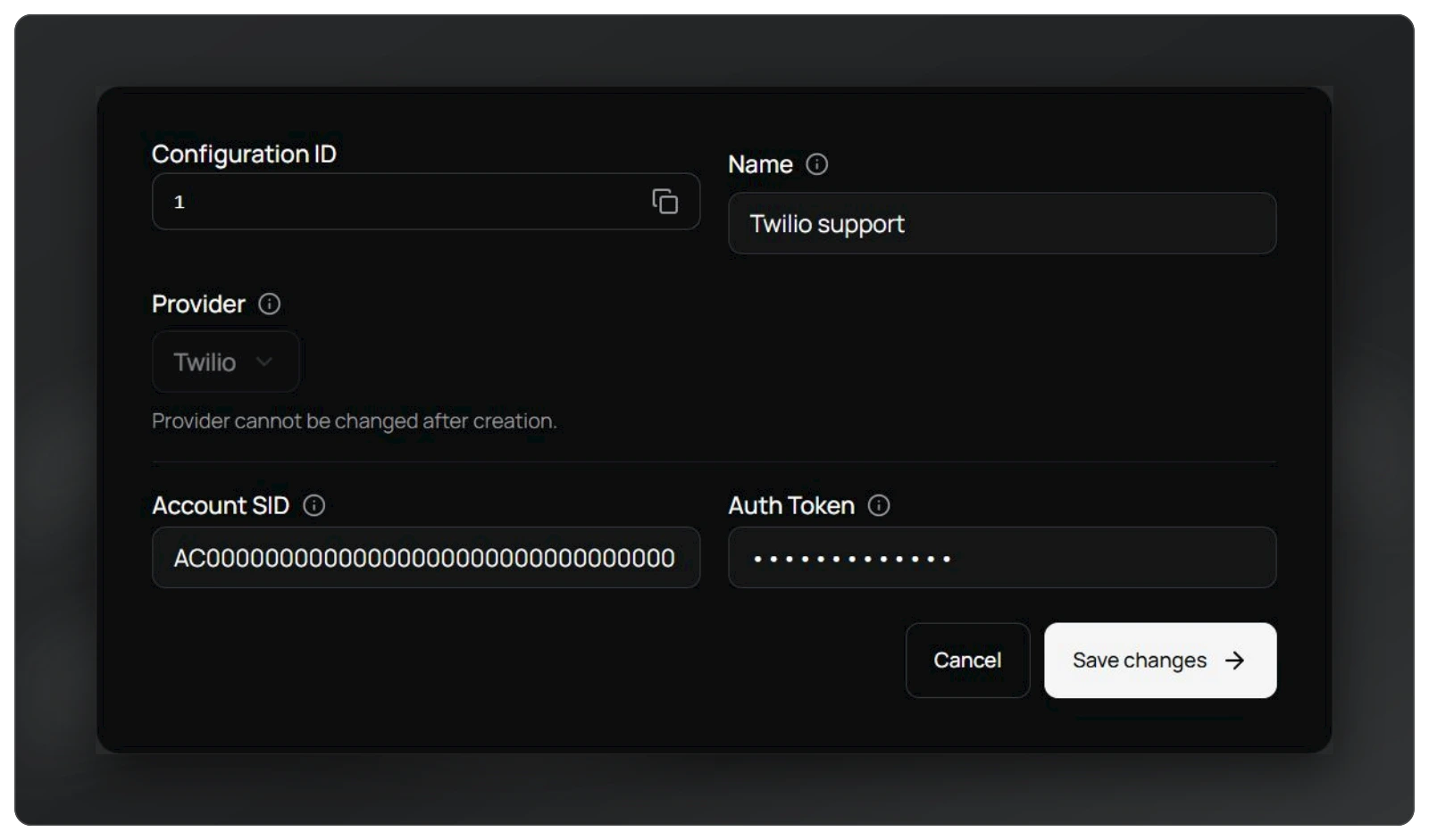
Twilio configuration in the actual Tigy AI interface

Step 4: Add your phone number

Once the configuration exists, go to manage phone numbers and add the number you bought. Copy it from Twilio and paste it in as-is, country US. The label is optional. Select the inbound agent that should answer calls and keep the number active.
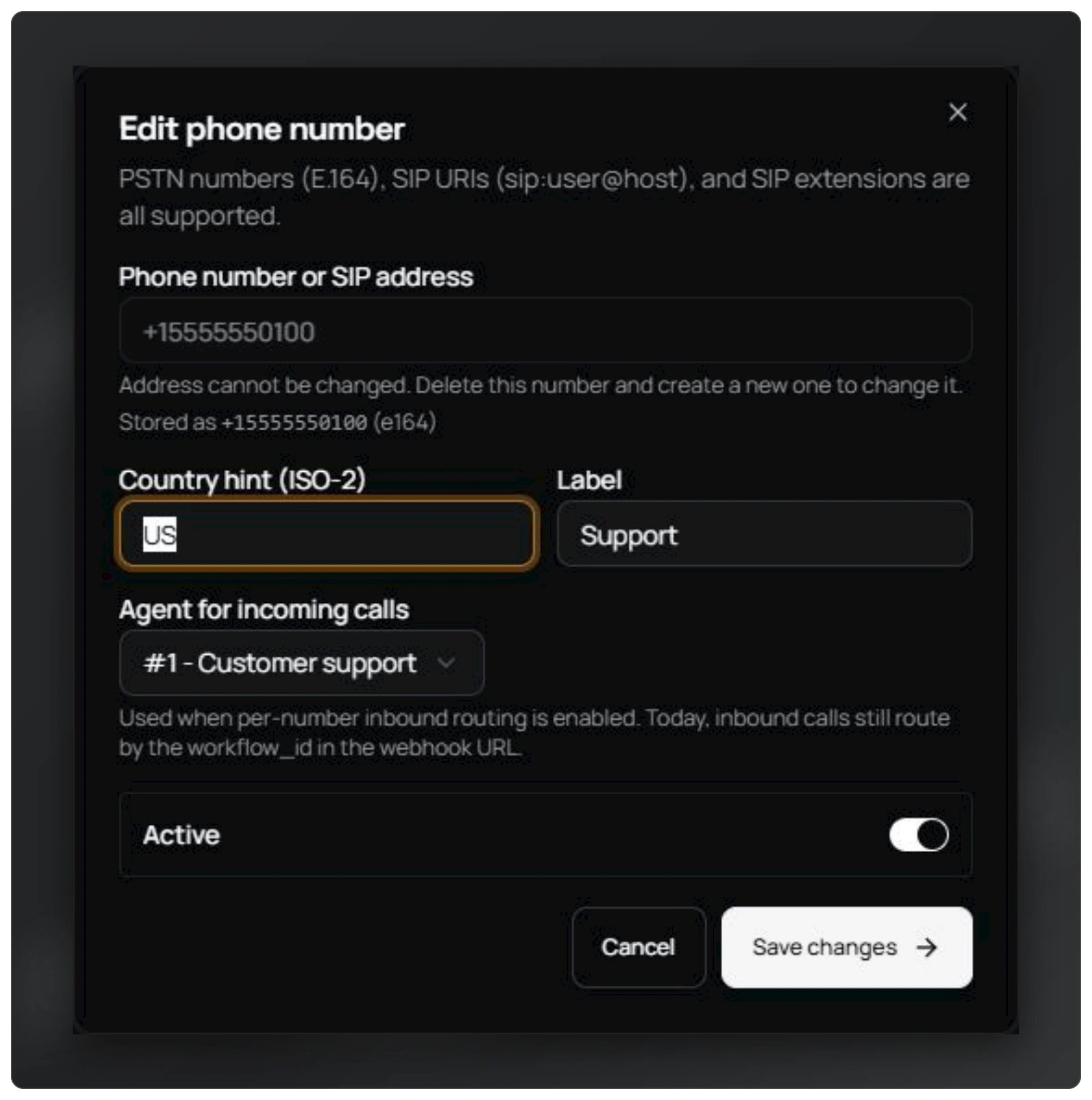
Active phone number and selected agent in Tigy AI

Step 5: Test it

Once configured, call the connected Twilio number from a verified phone. Twilio routes the call to Tigy AI and the selected agent answers.

Note

On a trial account, Twilio plays a default message before connecting to your agent. Press any key to skip it and go straight to the agent.

Inbound calls are routed through Twilio's webhook into your Tigy AI agent.

Next Steps

  • Make your agent do more on the call: Use External Tools, Knowledge covers tools and a Knowledge Base.
  • Other providers: Vonage, Plivo, Cloudonix, and SIP-based setups are covered in Telephony Integration.
← Back to documentation
© 2026 Tigy AItigyai.com ↗

On this page

  • Step 1: Create a Twilio account and buy a number
  • Step 2: Copy your Account SID
  • Step 3: Add the configuration in Tigy AI
  • Step 4: Add your phone number
  • Step 5: Test it
  • Next Steps