
Skip to content
Tigy AI
/
Legal centerDashboard
OverviewDeveloper
Overview

Get started

  • Introduction
  • Overview
  • First agent
  • Tools and data
  • Concepts
    • How it works
    • Calls and runs

Configure

  • Behavior
    • Prompting
    • Conversation flow
  • Voice and models
    • LLM
    • Voice
    • Transcription
    • Fallbacks
    • Audio library
  • Tools
    • Tools
    • HTTP API
    • MCP
    • Credentials
    • Call transfer
    • End call
  • Knowledge base
  • Testing
  • Agent ID

Deploy

  • Publishing
  • Versions
  • Telephony
    • Introduction
    • Connect telephony
    • Inbound calls
    • Twilio
    • Telnyx
    • SIP

Monitor

  • Runs and usage
  • Reports
  • Troubleshooting

Workspace

  • Workspace
  • Members and permissions
  • Billing
  • Security
  • Privacy

Developer

  • Call data
Dashboard
Explore pages
Overview

Get started

  • Introduction
  • Overview
  • First agent
  • Tools and data
  • Concepts
    • How it works
    • Calls and runs

Configure

  • Behavior
    • Prompting
    • Conversation flow
  • Voice and models
    • LLM
    • Voice
    • Transcription
    • Fallbacks
    • Audio library
  • Tools
    • Tools
    • HTTP API
    • MCP
    • Credentials
    • Call transfer
    • End call
  • Knowledge base
  • Testing
  • Agent ID

Deploy

  • Publishing
  • Versions
  • Telephony
    • Introduction
    • Connect telephony
    • Inbound calls
    • Twilio
    • Telnyx
    • SIP

Monitor

  • Runs and usage
  • Reports
  • Troubleshooting

Workspace

  • Workspace
  • Members and permissions
  • Billing
  • Security
  • Privacy

Developer

  • Call data
Dashboard

Documentation / Your First Agent in 5 Minutes

Your First Agent in 5 Minutes

Create a voice agent and test a browser conversation without setting up telephony.

Create an agent, write its instructions and talk to it in your browser. Currently, available agents are configured through a prompt.

Note

Open the Tigy AI dashboard and sign in to your workspace.

Step 1: Create an agent

Create an agent in the dashboard and describe its task. For example: "Answer customer questions about orders and transfer requests you cannot resolve."
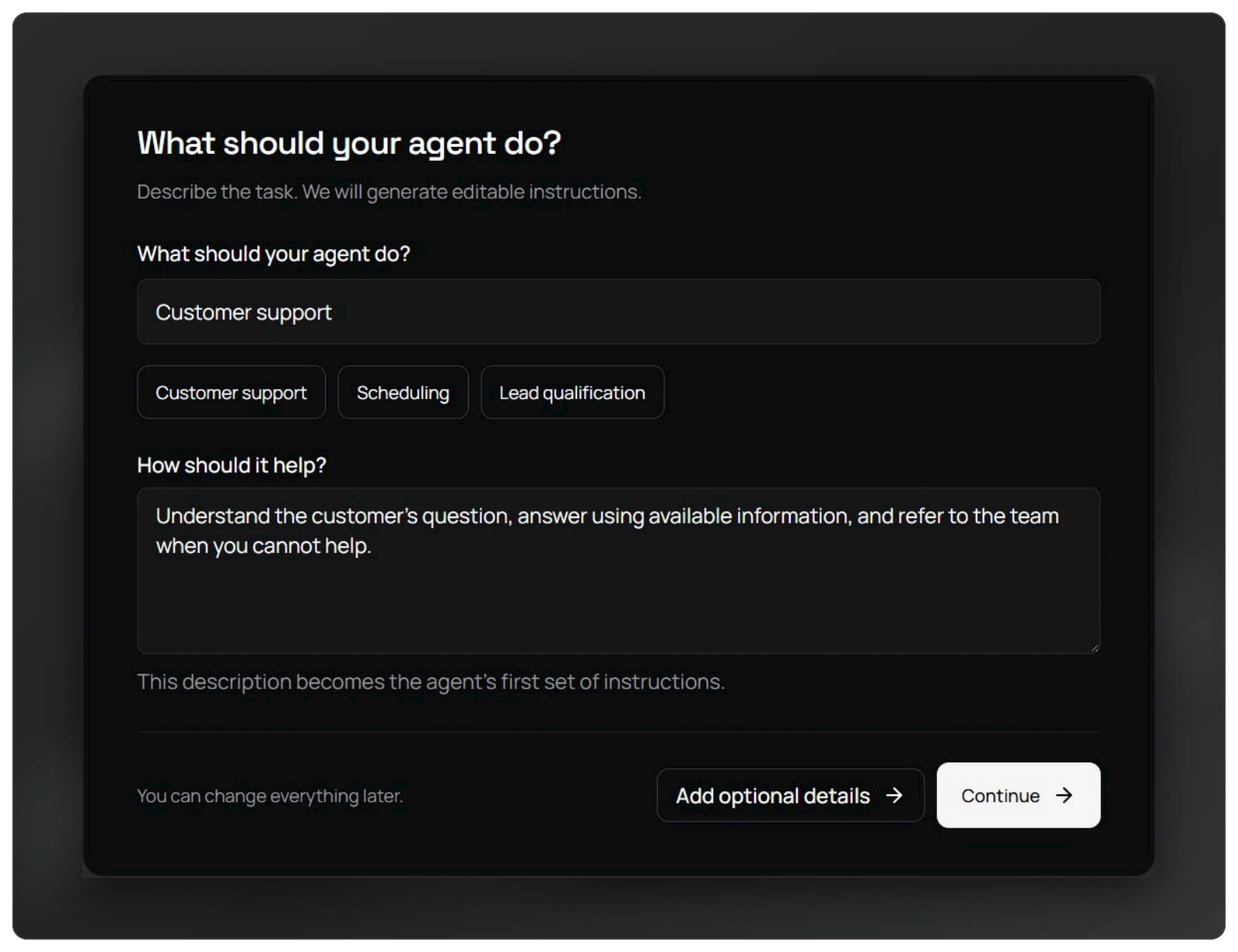
Create an agent: completed task and support description in Tigy AI.

Step 2: Write the agent instructions

Write how the agent should introduce itself, what information it should request and how it should respond. The agent uses this prompt to guide the conversation.
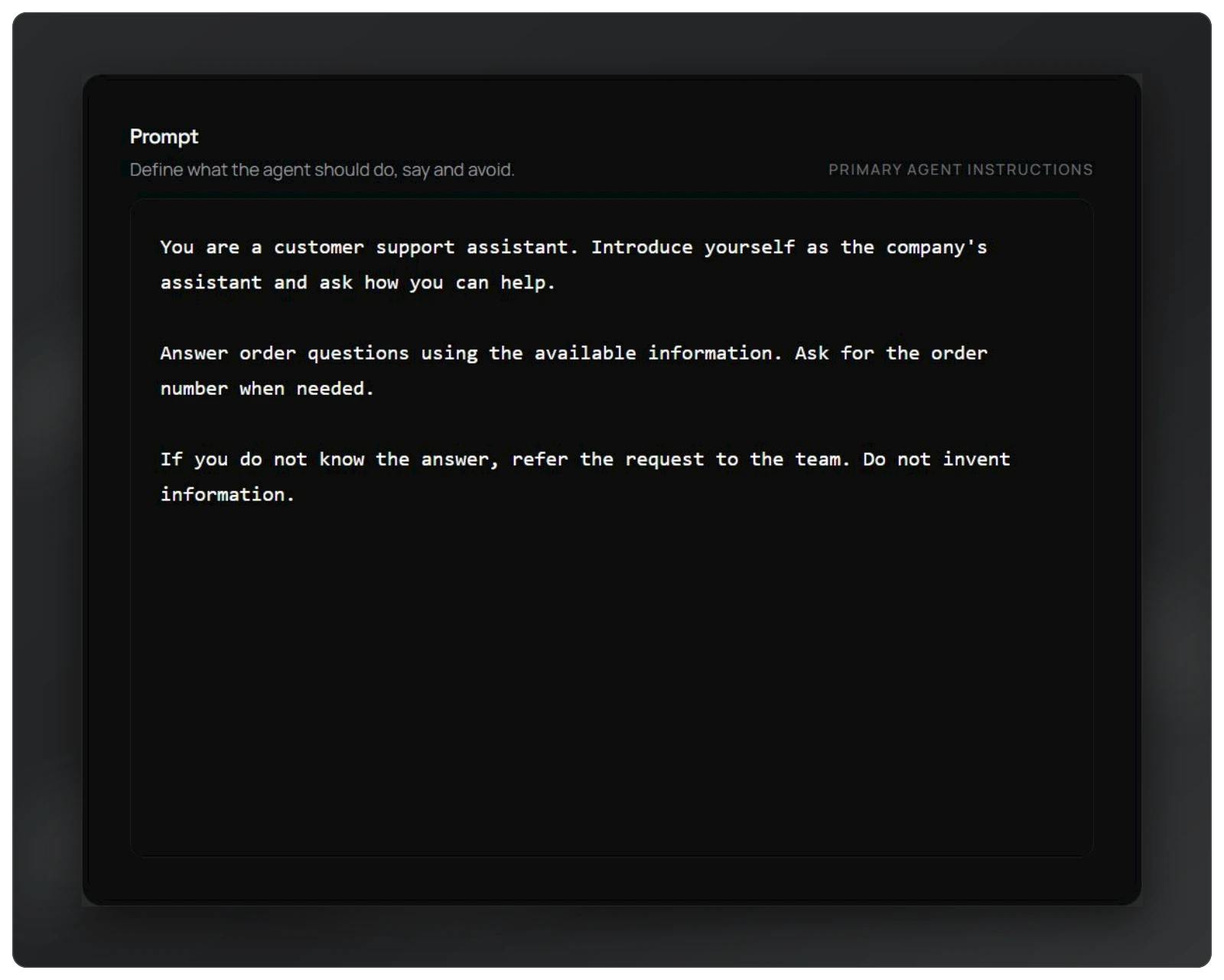
Example customer support instructions in Tigy AI

Step 3: Talk to it with a Web Call

In the editor, click Test Agent to start a browser conversation. Talk to the agent and review the transcript and tool calls to check that it follows your instructions.
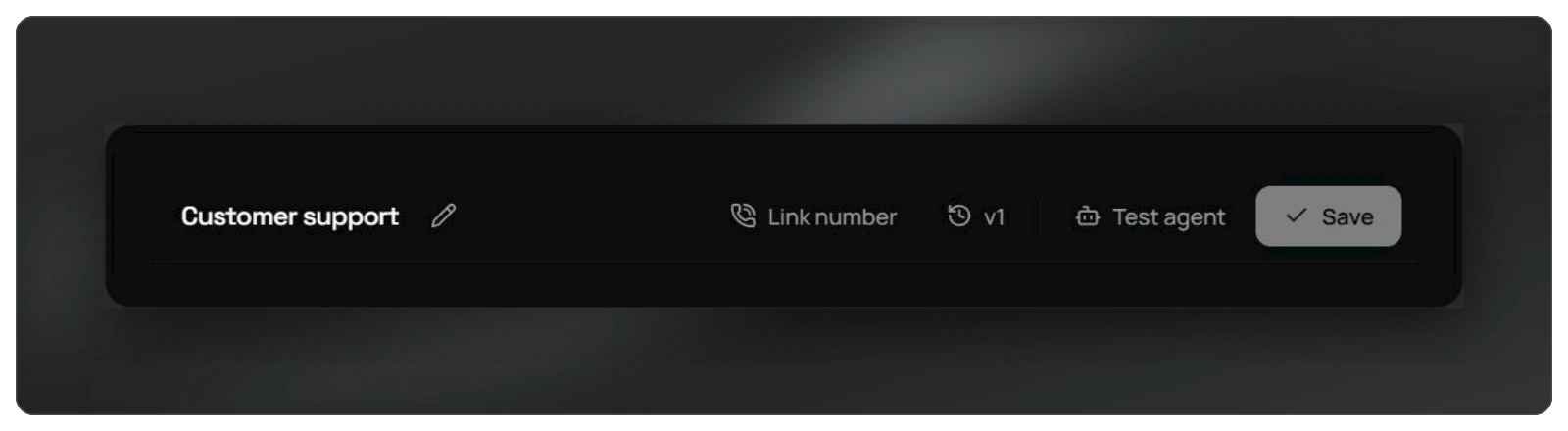
Actual editor header with the Test agent button.

Try a common question and an unexpected one. If a response differs from your expectations, clarify the instructions and test again.

Step 4: Iterate

Edit the prompt to adjust the tone, add important information or explain how to handle a particular situation. Save the changes and test again.

Next Steps

  • Take phone calls: connect a telephony provider.
  • Connect systems and documents: add tools and knowledge base documents.
  • Send conversation data to your system: configure webhooks.
← Back to documentation
© 2026 Tigy AItigyai.com ↗

On this page

  • Step 1: Create an agent
  • Step 2: Write the agent instructions
  • Step 3: Talk to it with a Web Call
  • Step 4: Iterate
  • Next Steps